Survey types
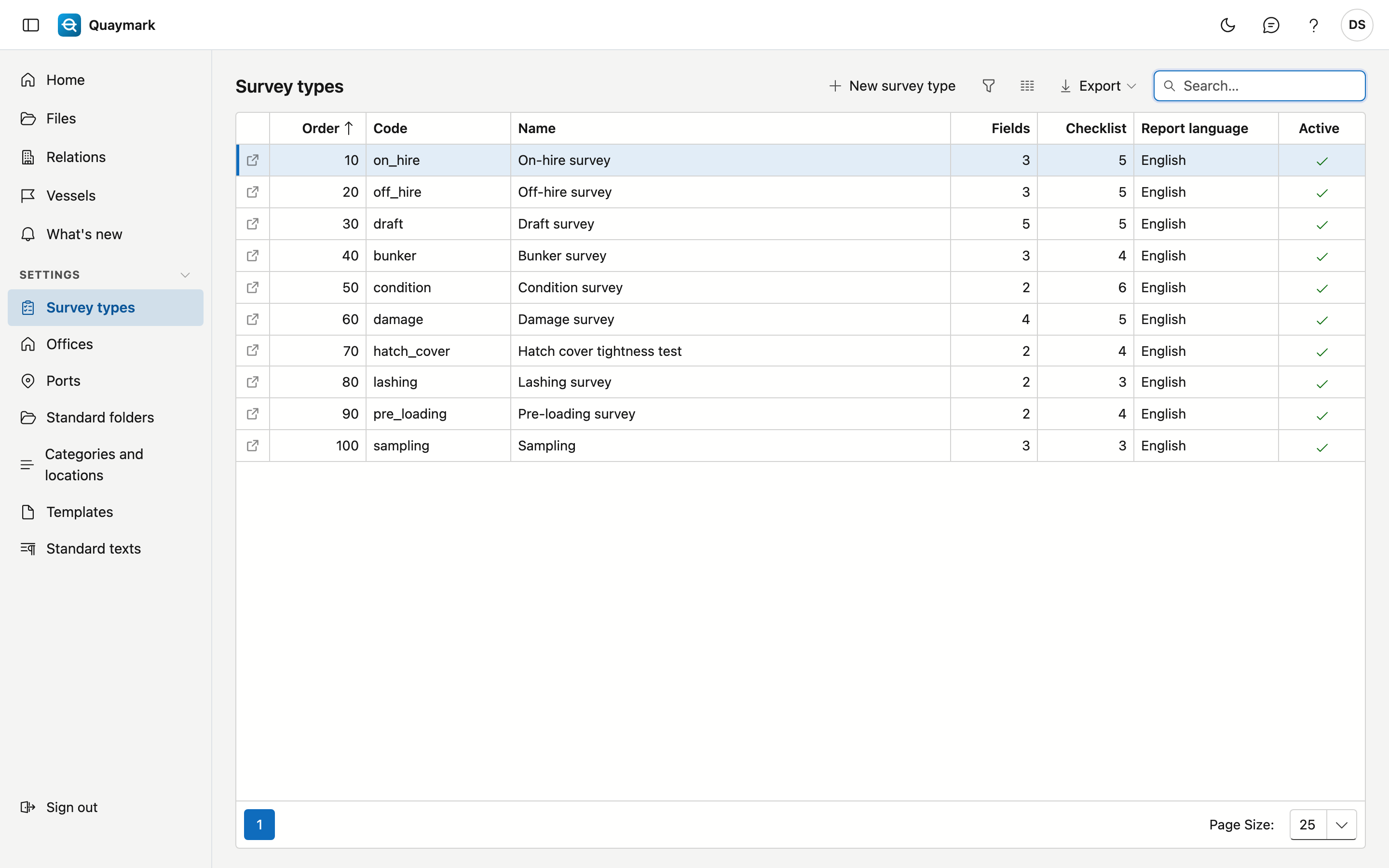
The survey types the office offers. A new office starts with a catalogue that you adapt or extend.
Opening the screen
In the menu on the left, click Settings, then Survey types.
The list
- For each type you see the code, the name, the number of fields and checklist items, the default report language and whether the type is active.
- Double-click a row to open the type. New survey type creates one.
- A type cannot be deleted, because older files refer to it. Set a type you no longer offer to inactive.
Survey type
One survey type: what is entered in the file and what the surveyor goes through on site.
- General: code, default report language, order in the lists, active, and the name in the four languages. The code is fixed once files use this type.
- Fields: the data a file of this type gets on top of the fixed fields. A field has a key (lower-case letters, digits and _, fixed because the field app and reports refer to it), a type (text, number, date, yes/no, choice or table), a label in four languages, a unit and whether it is required. A table has columns and optionally fixed rows, for example one row per hold.
- Checklist: the items the surveyor answers on site, each with a key, a label, and whether an answer or a photo is required.
- Sections: the text blocks of the report (introduction, observations, conclusion …). The surveyor writes them on the Report tab of the file; a report template shows them with the marker in the next column. A new survey type starts with the five standard sections.
- The arrow ↑ moves a field or item up one place. Changes to fields and checklist only count after Save.
The History tab shows who changed what.