Getting started
The home page of your office.
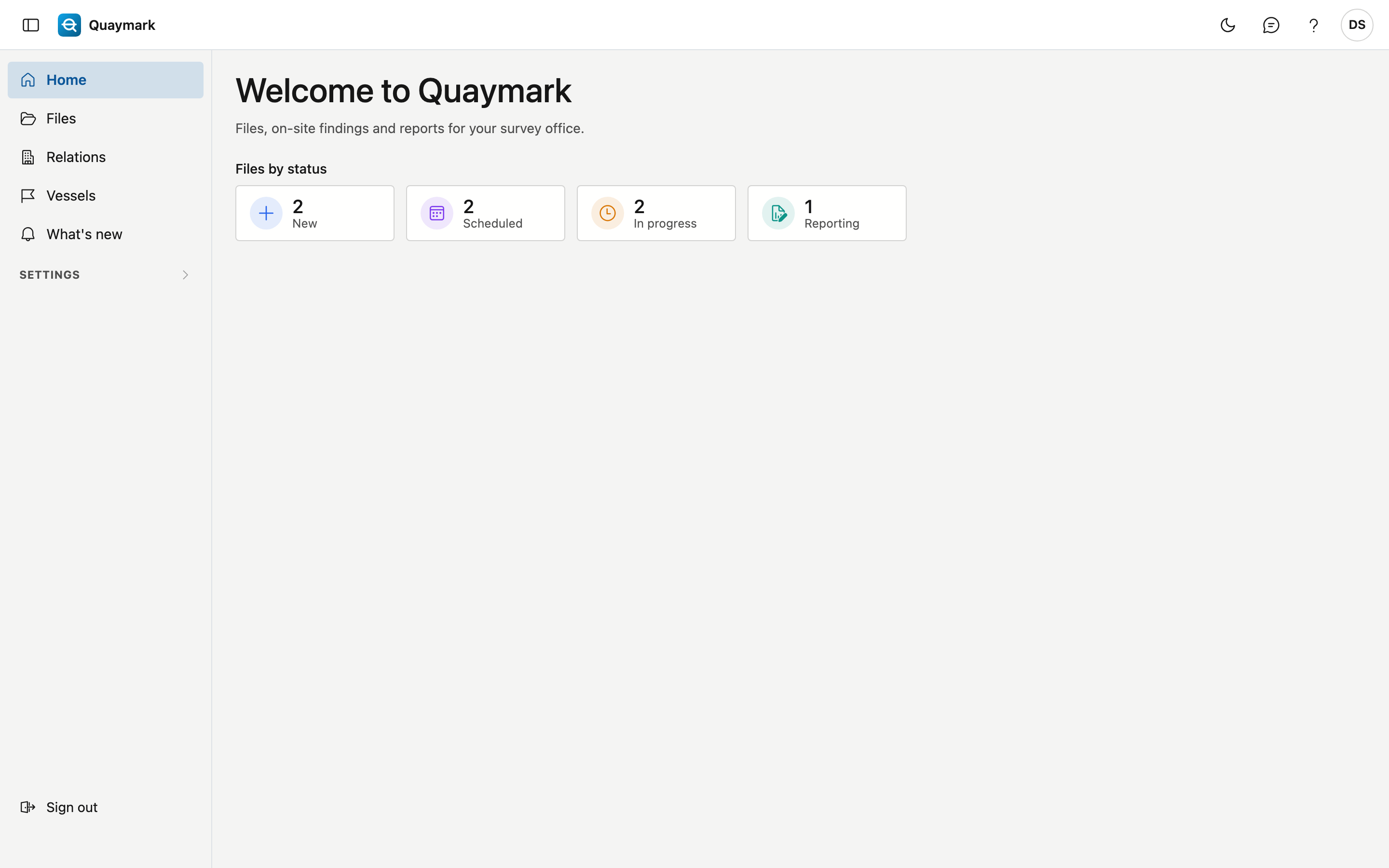
- Files by status counts the open files: new, scheduled, in progress and reporting. A click on a tile opens the list of files.
- The menu on the left shows the screens you have access to. Under Settings is what the office administrator sets up: survey types, offices, ports, standard folders, categories and locations.
- Top right: the feedback button, this help and your preferences (language, display).
- The version number at the bottom of the menu opens "What's new".
Sign in
Sign in with your user name or email address and your password.
- Lost your password or do not have one yet? Your administrator gives you a reset link.
- You also choose the screen language here.
- If two-factor authentication is on, the next screen asks for a code from your app.
After a number of failed attempts your account is locked for a while. Wait a moment and try again.
Enter the code
Your account uses two-factor authentication: a code is needed besides your password.
- Open the authenticator app on your phone and enter the six-digit code.
- The code changes every thirty seconds. If it fails, wait for the next code.
- Lost your phone? Contact your administrator.
Two-factor authentication
With two-factor authentication the application asks, when you sign in, for a code from an app on your phone besides your password.
- Scan the QR code with an authenticator app.
- Enter the code the app shows to confirm.
- You can switch it off here later; the screen then first asks for your password.
Change password
Here you choose a new password for your account.
- First enter your current password, then the new one twice.
- After the change you stay signed in; the new password applies from your next sign-in.
Set your password
You arrived here through the reset link your administrator created for you.
- Choose a new password and enter it a second time to confirm.
- Then sign in with that password.
- The link no longer works? It is only valid for a limited time: ask your administrator for a new one.