Templates
The Word documents Quaymark uses to lay out the office's reports, with one document per language (Dutch, French, English, German).
Opening the screen
In the menu on the left, click Settings, then Templates.
The list
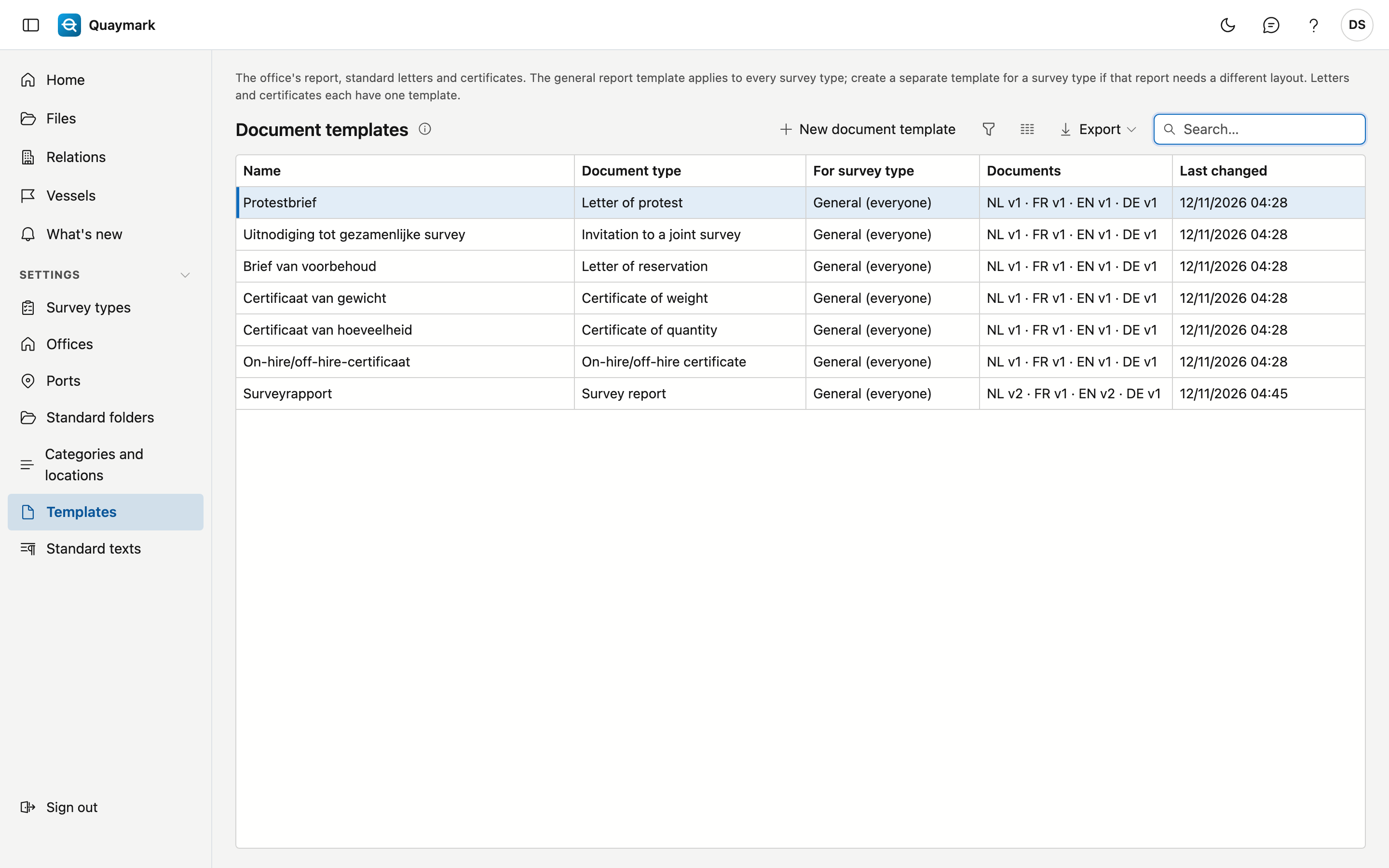
- Each office starts with a general template in the four languages. It applies to every survey type. Add your logo and house style to it.
- Should the report of one survey type look different? Create a template with New document template and choose the survey type. That template takes precedence over the general one, per language: without a French document, a French report uses the general French one.
- The Documents column shows the current version per language, so a missing language stands out.
- The three standard letters (protest, reservation, invitation to a joint survey) and the three certificates (quantity, weight, on-hire/off-hire) each have one template, regardless of the survey type. The surveyor writes the text of each letter; the statement of a certificate is in the template.
Report template
One report template: the versions per language and the Word document itself.
- One tab per language with the versions. Edit document opens the document in the editor; Restore this version creates a new version with the content of an old one, nothing is deleted.
- In the editor you place the fixed data (vessel, file number, principal …) via the fields tab, and a table with rows (attendance, findings, checklist) with the Insert table … button.
- What differs per survey type goes in as a marker: text between double braces, typed literally, such as
{{velden}}or{{rubriek:conclusie}}. The Markers panel shows which ones this template may use. A custom field ({{veld:…}}) only works in a template for one survey type. - Save as new version checks the document and the markers. An unknown marker is refused, with the reason. Check only looks at the fields, not at the markers.